Vercel
Copy page
Deploy the Inkeep Agent Framework to Vercel
Deploy to Vercel
Step 1: Create a GitHub repository for your project
If you do not have an Inkeep project already, follow these steps to create one. Then push your project to a reposistory on GitHub.
Step 2: Create a Turso Database
Create a Turso database on Vercel Marketplace or directly at Turso Cloud.
Step 3: Save your Turso Database URL and Auth Token
Create a token for your database, and then save the URL and token created.
Step 4: Create a Vercel account
Sign up for a Vercel account here.
Step 5: Create a Vercel project for Manage API
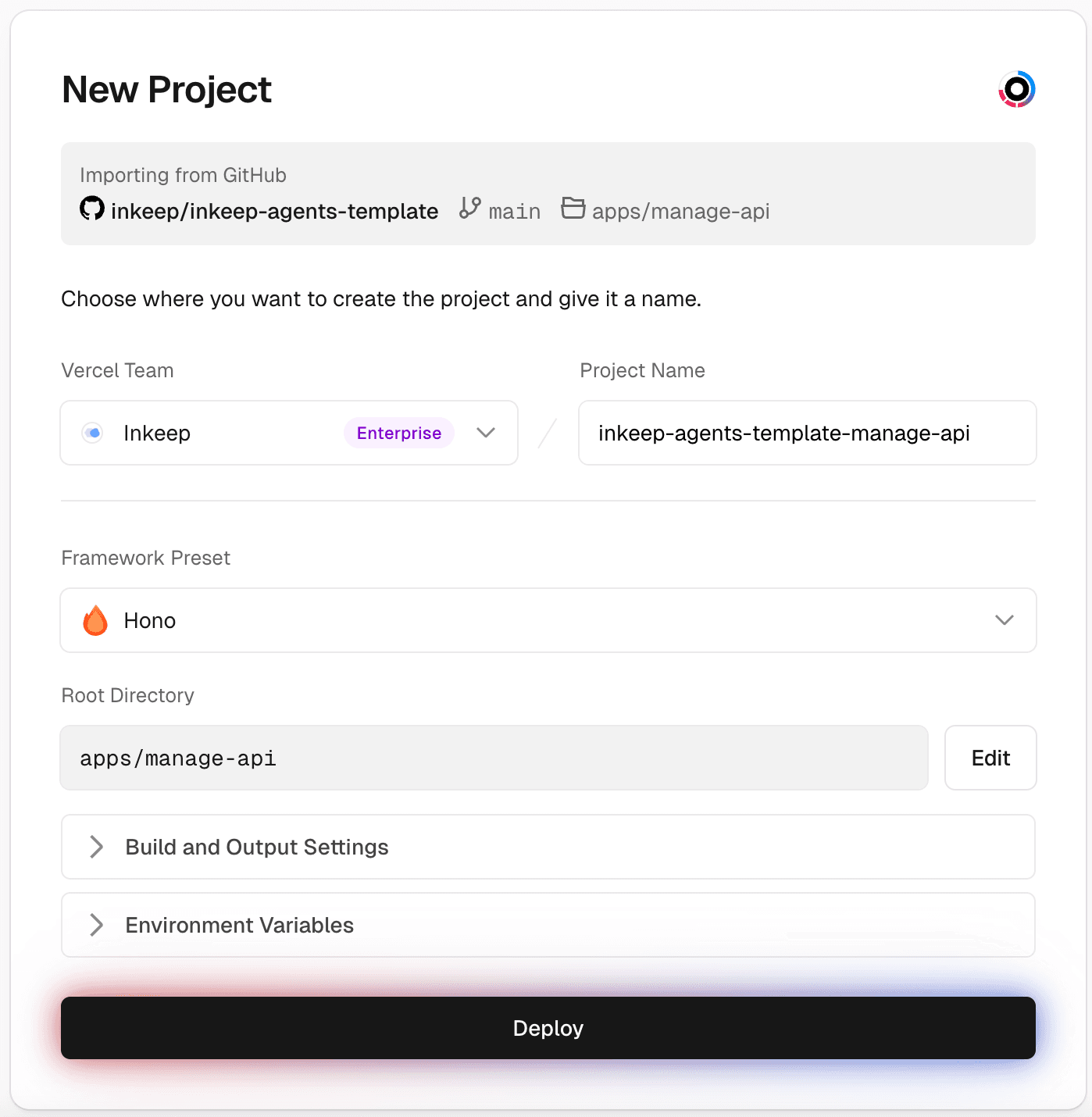
The Framework Preset should be "Hono" and the Root Directory should be apps/manage-api.
Required environment variables for Manage API:
| Environment Variable | Value |
|---|---|
ENVIRONMENT | production |
INKEEP_AGENTS_MANAGE_API_BYPASS_SECRET | Run openssl rand -hex 32 in your terminal to generate this value. Save this value for INKEEP_AGENTS_MANAGE_API_BYPASS_SECRET in Step 7. |
TURSO_DATABASE_URL | Turso database URL you saved from Step 3 |
TURSO_AUTH_TOKEN | Turso auth token you saved from Step 3 |
NANGO_SECRET_KEY | Nango secret key from your Nango cloud account. Note: Local Nango setup won't work with Vercel deployments. |
NANGO_SERVER_URL | https://api.nango.dev |
Step 6: Create a Vercel project for Run API
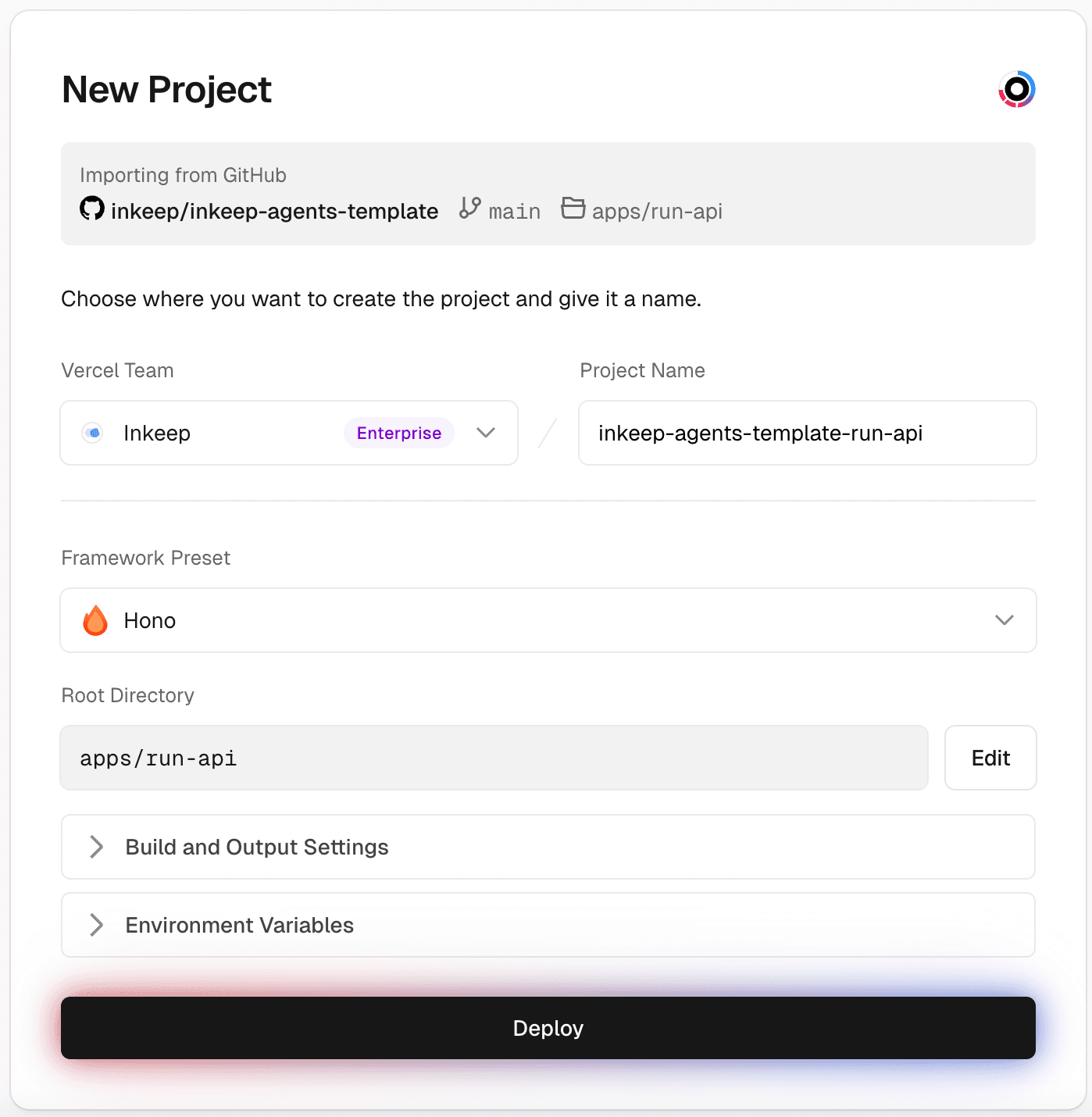
The Framework Preset should be "Hono" and the Root Directory should be apps/run-api.
Required environment variables for Run API:
| Environment Variable | Value |
|---|---|
ENVIRONMENT | production |
ANTHROPIC_API_KEY | Your Anthropic API key |
OPENAI_API_KEY | Your OpenAI API key |
GOOGLE_GENERATIVE_AI_API_KEY | Your Google Gemini API key |
INKEEP_AGENTS_RUN_API_BYPASS_SECRET | Run openssl rand -hex 32 in your terminal to generate this value. Save this value for INKEEP_AGENTS_RUN_API_BYPASS_SECRET in Step 7. |
TURSO_DATABASE_URL | Turso database URL you saved from Step 3 |
TURSO_AUTH_TOKEN | Turso auth token you saved from Step 3 |
NANGO_SECRET_KEY | Nango secret key from your Nango cloud account. Note: Local Nango setup won't work with Vercel deployments. |
OTEL_EXPORTER_OTLP_TRACES_ENDPOINT | https://ingest.us.signoz.cloud:443/v1/traces |
OTEL_EXPORTER_OTLP_TRACES_HEADERS | signoz-ingestion-key=<your-ingestion-key>. Use the instructions from SigNoz Cloud Setup to configure your ingestion key. Note: Local SigNoz setup won't work with Vercel deployments. |
NANGO_SERVER_URL | https://api.nango.dev |
Step 7: Create a Vercel project for Manage UI
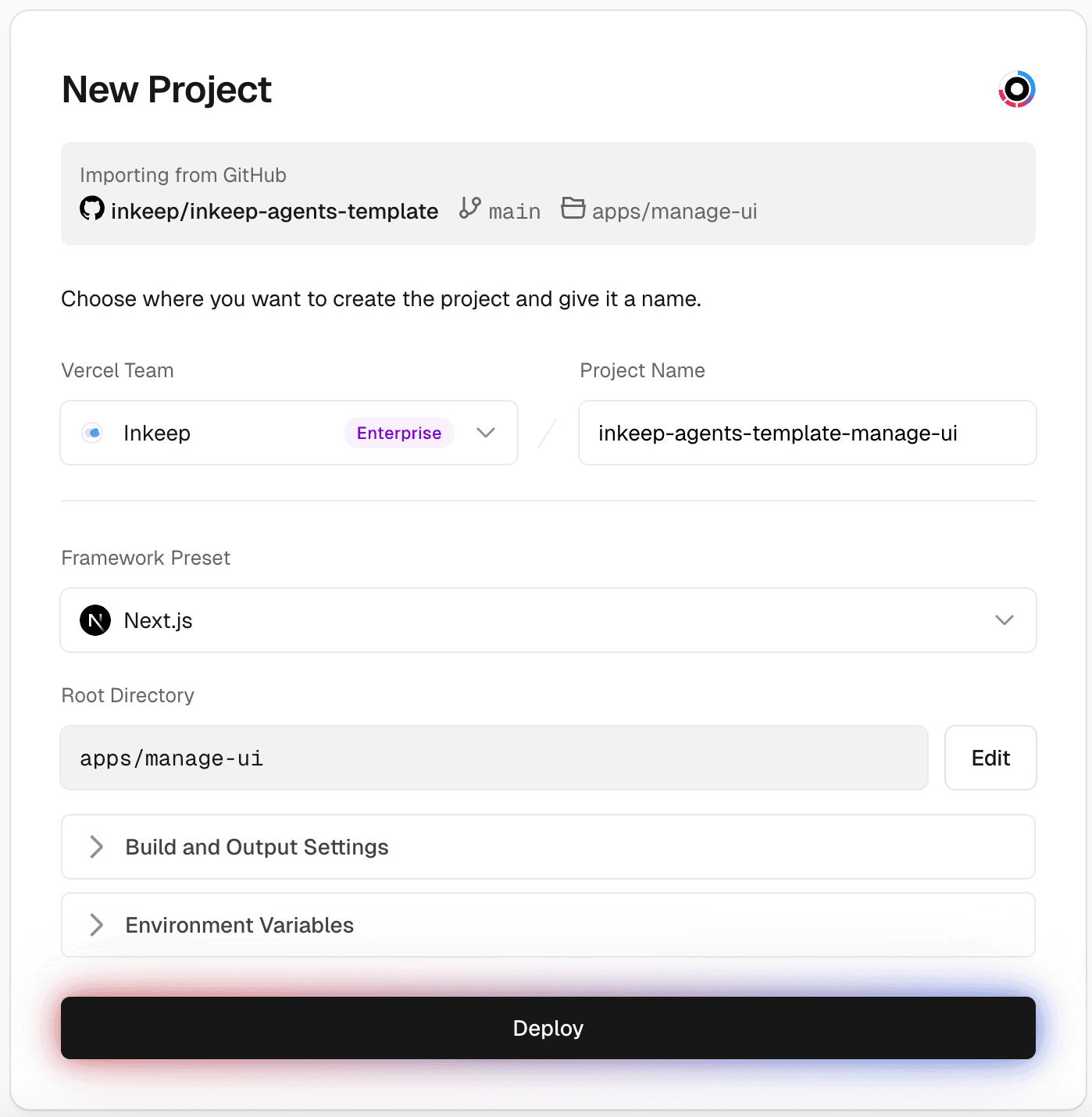
The Framework Preset should be "Next.js" and the Root Directory should be apps/manage-ui.
Required environment variables for Manage UI:
| Environment Variable | Value |
|---|---|
ENVIRONMENT | production |
INKEEP_AGENTS_MANAGE_API_URL | Your Vercel deployment URL for Manage API |
INKEEP_AGENTS_RUN_API_URL | Your Vercel deployment URL for Run API |
INKEEP_AGENTS_MANAGE_API_BYPASS_SECRET | Your generated Manage API bypass secret from Step 5 |
INKEEP_AGENTS_RUN_API_BYPASS_SECRET | Your generated Run API bypass secret from Step 6 |
SIGNOZ_URL | Use the instructions from SigNoz Cloud Setup to configure your SigNoz URL. Note: Local SigNoz setup won't work with Vercel deployments. |
SIGNOZ_API_KEY | Use the instructions from SigNoz Cloud Setup to configure your SigNoz API key. Note: Local SigNoz setup won't work with Vercel deployments. |
NANGO_SECRET_KEY | Nango secret key from your Nango cloud account. Note: Local Nango setup won't work with Vercel deployments. |
NANGO_SERVER_URL | https://api.nango.dev |
Step 8: Enable Vercel Authentication
To prevent anyone from being able to access the UI, we recommend enabling Vercel authentication for all deployments: Settings > Deployment Protection > Vercel Authentication > All Deployments.
Push your graph
Step 1: Configure your root .env file
Step 2: Create a cloud configuration file
Create a new configuration file named inkeep-cloud.config.ts in your project's src directory, alongside your existing configuration file.